By the end of this chapter: you can open Copilot, name every item in the left rail, and know the difference between Chat and Cowork.
Copilot is one app with two modes and five doors. Learn the map first and nothing later in this course feels foreign. This is the home screen — walk the rail top to bottom.
Two modes, five doors
At the top, a toggle picks your mode. Below it, the five doors — a fresh conversation, search across everything you've asked, your Library of past work, Notebooks (chapter 3), and Agents (chapter 4).
Remember it like this: "The rail is just five doors: new, find, saved, projects, helpers."
Mode one · a conversation
Chat
You ask a question, it answers — one turn, back and forth. The everyday driver.
Mode two · a coworker
Cowork
You hand it a whole job. It plans and runs the steps; you approve, then review the finished work.
ChatCowork
✎New chat1
⌕Search2
▤Library3
▥Notebooks4
◇Agents5
Chats
Weekly team update
Project kickoff notes
Budget questions
Work IQAuto ▾⋯
Hi, how can I help?
+Message Copilot🎤
FilesEmailsPeopleMeetings
1
New chat
A fresh, clean conversation. Nothing carries over unless you've set it up to (chapter 2).
2
Search
Find anything from an earlier chat — the answer you got three weeks ago is one search away.
3
Library
Every image and page you've made with Copilot, kept in one place.
4
Notebooks
Group chats and files by project — Copilot's version of a project workspace. Chapter 3 is all about this.
5
Agents
Prebuilt and custom helpers — Researcher, Analyst, and the ones your org builds. Chapter 4.
+
The + in the message box
Attach a file or drop in content for Copilot to work from — the fastest way to ground an answer.
Clear this up early
The Library isn't your history
It's the stuff you made. It only ever holds two things: Pages and Images (infographics, posters, dashboards, and the like). Your everyday Copilot work — chatting, drafting emails, summarizing threads, asking questions — never lands here. Something shows up only when you deliberately create a Page or generate an image. Your actual history lives in the left rail: Chats, and Search pulls up any past one.
Try Cowork — sayFlip the toggle to Cowork and hand it a whole task: "Organize these files and draft me a summary of what's in them." It plans the steps and runs them; you approve, then review the finished work. Chat is a conversation — Cowork is a coworker. (Heads-up for chapter 6: Cowork work is metered, not part of the flat seat.)
Checkpoint — before you move on
You can open Copilot and switch between Chat and Cowork.
You can point to Notebooks and Agents and say what each is for.
You've attached one file with the + and asked a question about it.
By the end of this chapter: you can build a strong prompt with G-C-E-S, have set your custom instructions once, know what Copilot remembers about you, and have saved your first reusable prompt.
Start with the skill everything else sits on. Microsoft's own guidance: a strong prompt has four parts. Miss one and you get a weaker answer.
GGoal
What you want — "a 5-bullet recap," "a reply," "a summary table."
CContext
Why and for whom — "for a meeting with the buyer," "for leadership."
EExpectations
Tone, length, format — "professional," "under 150 words," "as a table."
SSource
What to use — "this thread," "the attached file," "my inbox since Monday."
Put together — one prompt, all four parts in it
"Draft a friendly reply to this thread, for the buyer, confirming their order — professional but warm, under 120 words."
GGoal — draft a replyCContext — for the buyerEExpectations — warm, under 120 wordsSSource — this thread
Remember it like this: "Every color is one of the four parts. Take one away and Copilot has to guess — and it guesses wrong."
Weak
"Summarize the latest meeting."
Which meeting? For whom? How long? What format? Copilot has to guess — and the guess is a generic paragraph that satisfies nobody.
Strong
"One paragraph on yesterday's sales sync, for leadership, formal, from the recap only."
Goal, audience, format, and source — all there. One pass, usable result. Run both and watch the difference.
The pro askAsk for a decision, not a list: "Top 5 customers by gross profit — not revenue — one line on each saying why it's ranked there." Retrieval fetches; ranking decides. Tell it what "best" means or it picks for you and never says so.
And when the prompt keeps repeating itself — that's an instruction
The number-one complaint about AI is re-typing the same guidance every chat. That's not a prompting problem — it's a placement problem. Copilot has a settings panel built to end it: Settings → Personalization. A long prompt is usually a missing instruction.
The panel that ends the re-typing
Custom instructions — your role, your standards, how you like answers. Set once, applies to every chat. Saved memories — on by default: Copilot learns key details about you and your work as you go, and you can read, edit, or delete every one. Chat history — lets past conversations inform new ones.
Remember it like this: "You're not training the AI. You're filling out a preference card once — like telling a new assistant how you take your coffee."
How to get there in Copilot
Open Copilot and click your profile picture, top-right.
Choose Settings, then Personalization.
Turn Custom instructions on, then hit Edit instructions.
Open Manage saved memories to read and prune what it's learned.
Personalization✕
Control how Copilot tailors responses using your preferences.
Custom instructions
Add details about your preferences so Copilot can respond your way.
Edit instructions
Work profile
Copilot will use your work profile for more relevant answers.
View work data
Saved memories
Allow Copilot to remember details to provide better responses.
Manage saved memories
Chat history
Let Copilot use your past chats to personalize responses.
The real panel: Settings → Personalization. Three switches, one visit, done.
Show them the difference — flip it live
Same prompt, both times: "Draft a quick note to a customer about a delayed order."
Set once
Custom instructions
What's true in every chat: "I run operations. Keep answers short. Cite the file you pulled from." Two minutes, permanent payoff — and almost nobody does it.
Audit monthly
Saved memories
It fills itself — your role, your usual tasks. Go to Settings → Personalization → Manage saved memories and read what it wrote. Delete anything wrong or stale. Trust it after you've checked it.
Bank the best
The Prompt Gallery
The careful prompt you keep rewriting? Save it to the Prompt Gallery once and reuse it any time — the exact steps are right below. Reused beats re-typed, and you can share the good ones so the whole team runs the proven version.
The trap
Instructions don't travel
Chat, Outlook, and the Office apps each have their own settings — and each one starts blank. Set them in chat and they're not in Outlook. No error fires; you just quietly get less. Set each surface once.
Saving a prompt — it hides until you run one
Run the prompt first. There's no save button waiting anywhere — it only appears after a prompt has run.
Hover over your prompt in the conversation — a bookmark icon appears — click it, then Save prompt.
Find them in the Copilot Prompt Gallery → the Your saved prompts tab.
New design — go straight to the web. There's no Prompt Gallery button in the chat; the gallery lives at copilot.cloud.microsoft/prompts — bookmark it once and you're set. (Older surfaces may still show it in-app.)
Pro move — say"Build me copy-paste-ready Outlook custom instructions based on how I've been emailing over the last 90 days." It drafts instructions that sound like you — read them before you paste them, so you don't make a bad habit permanent.
The two dials at the top of the screen
Above the message box sit two controls worth a sentence each — one is about how well Copilot knows your world, the other about how hard it thinks.
Work IQ
Copilot knows your work
Work IQ is the layer that reads your real work — files, emails, chats, meetings — so answers fit your role and your data. It works alongside everything in this chapter: custom instructions and memories are what you told Copilot; Work IQ is what it picks up from how you actually work.
The model
Auto vs deep thinking
Auto lets Copilot pick the best engine for the task — the right default for everyday work. Deep thinking hands a hard, multi-step problem to a heavy reasoning model that takes longer but reasons it through. Leave it on Auto until a problem is genuinely tough.
Remember it like this"Two dials: Work IQ is how well it knows your world; the model is how hard it thinks. Everyday work — Auto. A genuinely hard problem — deep thinking."
The pro move
What "Microsoft Graph" actually means
You'll see the term around Copilot, so here's the plain version. Microsoft Graph is the map of your work — the layer that links your emails, files, meetings, chats, people, and org chart into one connected picture across Microsoft 365. It's how Copilot knows your world: ask "what did my manager decide last week?" and Copilot uses the Graph to find who your manager is, locate the meeting, and pull the notes. And the part that matters most — the Graph honors your permissions. Copilot only ever sees through it what you could already open yourself. Put simply: Work IQ is the intelligence; the Graph is the map it reads.
Work or Web — the question you'll get first
"If I prompt something company-specific with web search on — is that a leak?" No. Your prompt and your files are never sent to the web. Here's exactly what happens — and why the rule is still "stay on Work for internal work."
The shield
Green means protected
The green shield is enterprise data protection: your prompt and Copilot's answer stay inside Microsoft 365 and are never used to train the AI. It's on in Work and Web — it protects the session, not just one source.
The scope
Work vs Web is where it looks
Work grounds the answer in your own tenant — files, emails, chats you already have access to. Web grounds it in the public internet for current, outside-world info. A source choice, not a protection one.
What leaves
Only a few words go to Bing
When the web would help, Copilot sends a short search query — a few words, never your full prompt or your files, with your name, domain, and tenant ID stripped off. Not used for ads, not to train models, not to improve Bing.
The habit
Keep the company stuff on Work
A term you type can still reach that query — so for anything confidential and internal, stay on Work; there's no reason to involve the web. Admins can enforce it (web off in Work mode) and audit every query in Microsoft Purview.
Remember it like this"The shield means you're protected. Work versus Web is just where it looks — your files or the internet. Keep the company stuff on Work: not because Web leaks, but because there's no reason to send it out."
One instruction — but where does it belong?
Everything in this chapter follows one rule: pick the simplest place that still covers it — and the moment you're typing the same thing twice, give it a permanent home.
True everywhere
"Always answer short, cite the source"
How you work, in every chat → Custom instructions. Set once; every conversation inherits it. Retyping it is the treadmill you're getting off.
It learns on its own
"My role, my usual tasks"
You don't set these — Copilot banks them as Saved memories while you work. Your job is the audit: read what it wrote, fix what's wrong. Find them at Settings → Personalization → Manage saved memories.
Reused, not universal
"My weekly-report prompt"
A careful prompt you run again and again isn't a preference — it's a saved prompt. Park it in the Prompt Gallery and pull it up instead of rebuilding it.
One body of work
"Everything for this project"
When the context is a whole project — its files, its history, its decisions — that's bigger than a preference. That's a Notebook — chapter 3.
Checkpoint — before you move on
You've written 2–3 lines of custom instructions and saved them.
You've opened Saved memories, read the entries, and deleted at least one test entry.
You've saved one prompt to the gallery and re-run it from there.
By the end of this chapter: you've built a notebook, added sources, and understand why a scoped answer beats a search of everything.
Lock in one mental model: a Notebook is where you bring many sources together for one body of work — a project, a client, a proposal — and Copilot answers from those sources and nothing else. Regular Copilot searches everything you can see; a Notebook searches only what you put in it. Scoped, checkable, and free of noise. The two-second test: if the first thing you do in a chat is explain background before you can even ask — you need a Notebook. That's the tell.
Build one — sixty seconds
Left rail → Notebooks → new → name it after the project. Then feed it: the first tab pulls in past Copilot chats (the research you already did), and the References tab adds files, meetings, emails, and sites — Word, Excel, PowerPoint, PDF, OneNote all work.
Remember it like this: "Give Copilot a desk, not the whole building. Everything on the desk is fair game; nothing else exists."
Build one — live, right now
Left rail → Notebooks → New.
Name it after the project — this becomes the "desk."
On Copilot Chats, pull in past chats you already ran.
On References, add the files, meetings, emails, and sites.
Ask it one question — the answer comes only from what's inside.
←Add to My Next Big Project✕
Copilot ChatsReferences
⌕Search
AllChatsFilesMeetingsEmailsSites
▤Supplier scorecard.docxAdd
▦Freight costs.xlsxAdd
▥Vendor review deck.pptxAdd
Create NotebookCancel
The References tab is the boundary — filter by Files, Meetings, Emails, or Sites and load the desk.
It lives in OneNote too — and OneNote writes your recap
Notebooks are built into OneNote — and the same OneNote now turns a Teams meeting into a page: recordings, participants, an AI-powered meeting summary, AI-suggested tasks, and shared notes where Copilot has already written the Decisions and Open questions before you type a word.
Remember it like this: "The meeting writes its own notes. Your job is to read them and fix what's off — not to take them."
Where the recap shows up
Open the Teams meeting after it ends.
Go to the Recap tab — summary, tasks, and notes are there.
The shared notes open in OneNote, Decisions and Open questions already filled.
Read them, correct anything wrong, and share the page.
Copilot training
Wednesday · 12:10 PM
▸Recordings
▸Participants (8)
▸AI-powered meeting summary
▸AI-suggested tasks
▾Loop collaborative notes
Copilot training
AI-generated content in notes may be incorrect.
✦Decisions
Roll Copilot out to the pilot team first, then expand.
Build one shared prompt library everyone works from.
✦Open questions
Which workflows to automate first — not yet decided.
A standard way to verify AI output before anyone uses it.
The move nobody teaches: those meeting recaps scatter across your Teams library over months — finding the one where something got decided is a scavenger hunt. Add the related meetings to one Notebook, share it once, and the whole team has them in one place. Ask it "what did we decide about the budget?" and it answers from every meeting at once.
Before · scattered across six months
JanuaryProject kickoff
FebruaryRequirements review
MarchVendor demos
AprilBudget check-in
MayRollout planning
JuneGo-live wrap-up
→
After · one notebook, one link
🗀Project — every meeting
👥 Shared with the team
💬 Project kickoffJan
💬 Requirements reviewFeb
💬 Vendor demosMar
💬 Budget check-inApr
💬 Rollout planningMay
💬 Go-live wrap-upJun
Four notebooks worth building this week
A notebook earns its keep the moment it replaces a hunt. These four pay off immediately — build one and the pattern becomes obvious.
The account
One customer, everything
Load their contracts, past quotes, meeting recaps, and the email threads. The whole history answers in one place instead of living across six inboxes.
Say"What did we promise this account last quarter, and what's still open?"
The bid
Win the next one faster
Load the RFP, your pricing sheet, the spec sheets, and two proposals you already won. It drafts in your format instead of from a blank page.
Say"Draft a response to this RFP using the structure and terms from our last two wins."
The recurring report
A review, not a rebuild
Load last cycle's report plus this cycle's data. Every month becomes a ten-minute check instead of an afternoon rebuilding the same thing.
Say"Build this month's in the same format — flag anything that moved more than 10% and say why."
The procedure
Stop answering the same question
Load your SOPs, policies, and training docs. New people ask the notebook first — and the answer cites the actual document, not somebody's memory.
Say"How do we handle a short shipment — and which document says so?"
Checkpoint — before you move on
You've created a notebook named after a real project and added 3+ sources.
You've asked it one question and confirmed the answer came only from those sources.
You can explain "desk, not building" in your own words.
By the end of this chapter: you know what an agent is, where they live, and the one security rule that makes them safe to use.
An agent is a helper with a job description: grounded in chosen content, with instructions on how to behave. Microsoft ships prebuilt ones (Researcher for deep dives, Analyst for data), your org can build its own — and every SharePoint site now comes with a ready-made agent scoped to that site's content.
Prebuilt
Researcher & Analyst
Under Agents in the rail. Researcher runs deep, multi-step research; Analyst works your data like a first-pass analyst. Try one before building one.
On every site
The SharePoint agent
Every SharePoint site has a ready-made agent that answers from that site's files. Site editors can also create custom ones scoped to up to 20 chosen sources.
The security rule
It answers by YOUR permissions
An agent can never show someone a file they couldn't already open. Two people ask the same agent the same question and get different answers — each filtered by their own access.
The catch
Sharing grants nothing
Share an agent and the recipients get the agent, not the files. Permissions on the sources don't change. The real risk is oversharing that already existed — the agent just makes it findable. Fix the folder, not the agent.
The whole security model in one line: the answer is the overlap of what the agent knows and what the asker may see.
Prove it live — same agent, two askersWho's asking?
Both ask the Finance-site agent the same thing: "What's our late-fee policy?"
Cowork — the agent that does the whole job
Chat answers. Cowork works: it plans a long-running, multi-step job across your apps, files, and data, then hands you finished work to review. It's the most capable thing in Copilot — and the only part that isn't covered by the seat. Here's what it does, what it asks before acting, and what it costs, so you can decide if it's worth it.
What it actually does
Describe the outcome, not the steps
"Draft the email," "build the spreadsheet," "schedule the meeting" — Cowork coordinates the whole workflow across your apps and data. It's powered by Work IQ, and it picks the model best suited to each task, so nobody has to think about which engine is running.
It asks before it acts
Nothing leaves without your yes
Before Cowork does anything on your behalf — sending an email, posting to Teams, scheduling a meeting — it stops and asks permission. You approve it, redirect it, or stop it. Same rule as everywhere else in this course: it drafts, the human decides.
The part owners miss
Your seat does not cover it
Cowork requires a Microsoft 365 Copilot license — and no Cowork usage is included with that subscription. It's metered in Copilot Credits, one pooled balance governed at the tenant level. Cost scales with work performed, not seats, so ten people can run one expensive workflow.
What drives the bill
Four things set the price
Each task is priced on model use, context retrieval, tool calls, and runtime. A workflow costs more as it gets more complex, touches more systems, and takes more actions — heavy reasoning costs more than a simple lookup. Estimate one run before you schedule it daily.
Remember it like this"Chat is included in the seat. Cowork is metered on top of it. So use Chat for answers — and reach for Cowork when the finished work is worth paying for."
Copilot Studio — where agents actually get built
Everything so far has been an agent somebody else made. Copilot Studio is where you make your own — Microsoft's description: "a graphical, low-code tool for building agents and agent flows." No developers, no data scientists. It's the piece most people never open, usually because they don't realise their Copilot license already opens the door.
What you build
Agents, and the flows behind them
An agent handles the conversation and the task. A flow automates the repetitive steps behind it, and an agent can trigger a flow as a tool and get the result back. You describe both in plain language.
Say"An agent that answers our delivery-window questions from the shipping policy doc, and hands off to a person if it's about a specific order."
Where it lives
Its own web app
Go to copilotstudio.microsoft.com. Worth knowing if you learned this a while ago: the old Copilot Studio app inside Teams stopped being able to create classic chatbots after June 2026 — it now just redirects makers to the web app.
Where agents can go
Further than you'd expect
Publish to Teams, your own website, mobile apps, Facebook, or any channel Azure Bot Service supports. That reach is genuinely useful — and it's also the single thing that decides what you pay, as the box below explains.
The trap to avoid
A trial can't publish
The trial license lets you create an agent and test it in the test panel — but you cannot publish it. People build something genuinely good on a trial, then discover it can't ship. Sort the license before you invest the afternoon.
Build your first agent — four steps
Open copilotstudio.microsoft.com and sign in. If you're blocked here, it's a license or an admin setting, not a mistake you made.
Describe it in plain English — what it's for, who asks it things, and the tone you want. No flowcharts to draw first.
Give it knowledge. Point it at the documents or site that hold the real answers. Without this it's a chatbot; with it, it's useful.
Test it, then publish. Use the test panel until the answers are right, and only then choose where it goes live.
Start where the questions repeat. The best first agent is whatever your team already answers ten times a week from the same document — delivery windows, expense rules, opening hours, returns.
The rule that decides your bill — this is the one to remember. With a Microsoft 365 Copilot license, agents used inside Copilot Chat, Teams or SharePoint are zero-rated: Microsoft states that classic answers, generative answers and Microsoft Graph tenant grounding there "doesn't count against the Copilot Studio message pack or meter." Step outside that — your own website, an external channel — and you're spending Copilot Credits, the common currency since September 2025. Two things owners get caught by: unused credits don't roll over month to month, and going past your purchased capacity can result in service denial, not just a bigger invoice.
The SharePoint playbook — before agents spread
The fear is "if I share the agent, the team sees my files." The truth is the opposite: the agent grants zero new access — but it makes every overshare you already have findable in one sentence. Microsoft's own warning: generative AI amplifies the risk of oversharing. So the job isn't blocking agents — it's four moves, in this order.
Move 1 — find it
Run the oversharing reports first
SharePoint admin center → Reports → Data access governance. The report that matters most: "Everyone except external users" — the top 100 sites shared org-wide in the last 28 days. And it's already paid for: one Copilot license in the tenant gives admins SharePoint Advanced Management free — most owners never open it. You can't govern what you haven't measured.
Move 2 — hide it
Restricted Content Discovery
Per site: Active sites → select the site → Settings → "Restrict content from Microsoft 365 Copilot" → On. That site stops surfacing in org-wide search and Copilot — it even hides the Agent icon — without touching anyone's permissions. Timing catch: on sites over 500,000 items it can take more than a week to fully apply. Flip it before the rollout, not the morning of.
Move 3 — wall it
Harder locks where they're earned
Restricted Access Control locks a whole site to one security group — even against old links and prior access. Sensitivity labels with encryption are the per-file lock: Copilot can't read the file unless the asker holds the EXTRACT right, not just view. One gap to know: you can't label the .agent file itself — protection rides on the sources.
Move 4 — the catches
Say these out loud
Restricted SharePoint Search retires July 31, 2026 — capped at 100 sites, never a real boundary; anything built on it migrates to RCD now. "Block" only blocks Copilot Chat — a blocked agent can still run in the site and Teams. And agents refuse to answer when guests are in the chat — that one's protection by design, not a bug.
Who builds, who uses, who pays — the matrix owners skip
The four combinations
License and PAYG decide everything
Creating any agent takes a Copilot license. Using one: licensed users are covered by the seat; unlicensed users are blocked — unless the org turns on pay-as-you-go, and then every unlicensed use bills to an Azure resource. There is no free path.
The trap
"It's free with SharePoint" — it isn't
The moment PAYG goes on so the wider org can use agents, the meter runs on every unlicensed interaction. Decide the licensing path before agents spread: everyone seated → leave PAYG off; wider rollout → turn it on deliberately and scope it to a security group so it can't run away.
Checkpoint — before you move on
You've run Researcher or Analyst on a real question.
You can state the permission rule from memory: "it can't show me what I can't open."
You know sharing an agent never shares the underlying files.
Whoever owns the tenant can recite the four moves in order: audit, hide, wall, catches.
The licensing path is decided — seats for all, or PAYG scoped to a group — before any agent is shared wide.
By the end of this chapter: you've used Copilot inside Outlook — real screens, real clicks — and know where it lives in Excel, Teams, and SharePoint.
Copilot isn't only the app — it's inside the tools you already open every morning. These are real screenshots. Walk them exactly as shown.
Button one
O
On an open email — the Copilot icon
Acts on the message in front of you: summarize this thread, draft a reply, coach a draft you wrote for tone and clarity. This is the question you'll get most — know which button does what.
Button two
O
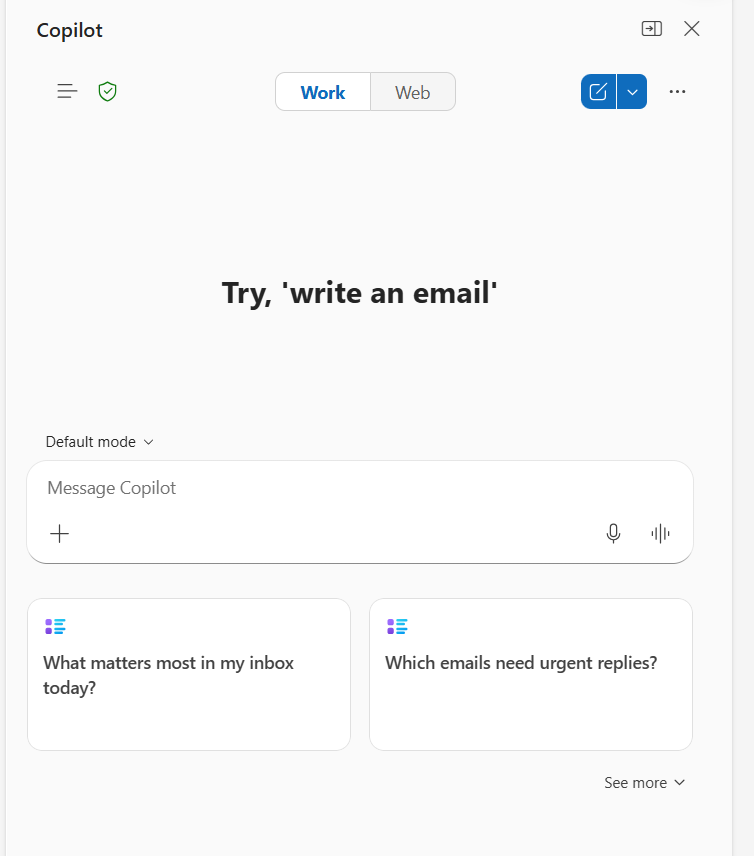
The chat panel
Asks across your whole mailbox, not just one email: "What did the buyer say about pricing last week?" Triage, prioritize, and make inbox rules in plain English — no rules editor.
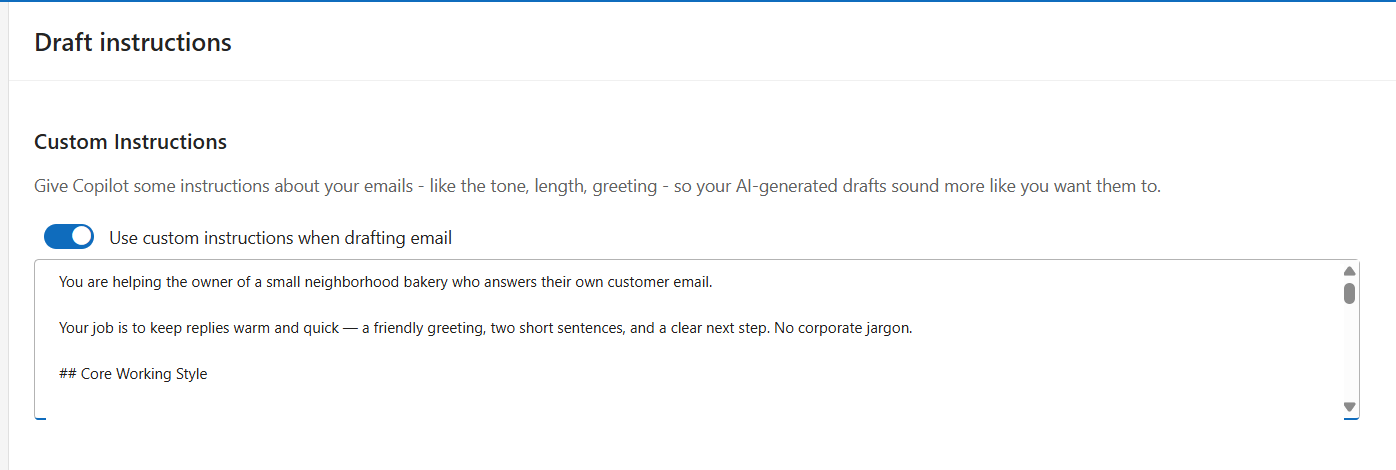
OOutlook — set your draft style once. Under Settings → Copilot → Draft instructions, tell Copilot your tone, length, and greeting — so every AI draft already sounds like you before you edit a word.
Try it — say"Keep my replies warm and short — a friendly greeting, two sentences, and a clear next step. No corporate jargon."
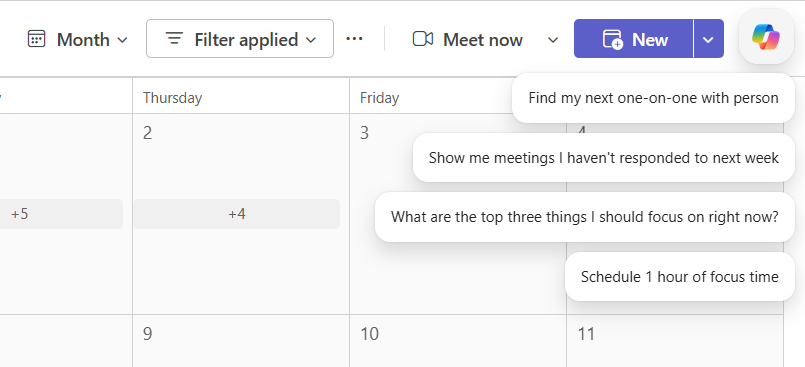
OCalendar — suggestions. Copilot proposes; you approve. The pattern to teach everywhere: it drafts, the human decides.
Try it — say"What are the top three things I should focus on right now?"
OOutlook — the pane. Summarize a long thread in seconds — who wants what, what's still open — before you've read a single reply.
Try it — say"Summarize this thread — who wants what, and what's still open?"
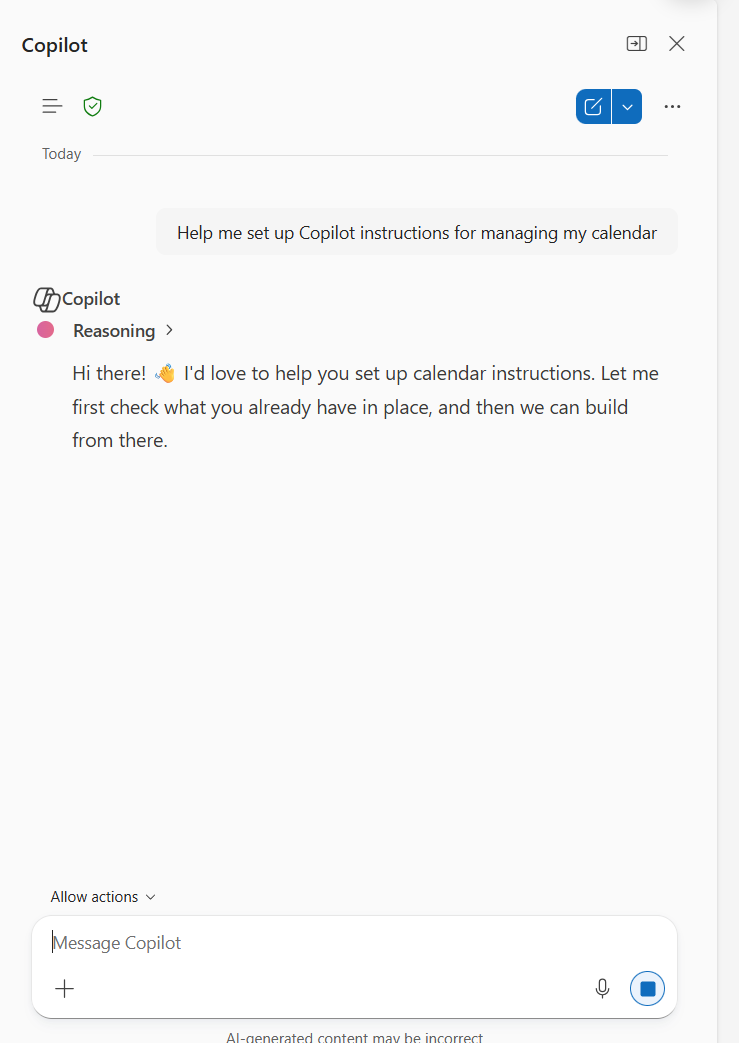
OCalendar — standing instructions. Tell Copilot how you run your day once, and let it apply that to scheduling — chapter 2's placement idea, working in a real app.
Try it — say"Help me set up Copilot instructions for managing my calendar."
Excel
X
=COPILOT() in a cell
AI inside a single formula: type =COPILOT(...) in a cell and describe what you want done with the data. Analysis without leaving the sheet. The gotcha behind most support calls: the file must be saved to OneDrive or SharePoint with AutoSave on, or Copilot in Excel simply won't work.
Try it=COPILOT("Which of these 20 products grew the most this quarter?")
Teams
T
Recaps & the Facilitator
Meetings produce an AI recap and suggested tasks automatically (you saw the OneNote side in chapter 3). The Facilitator agent takes notes and tracks the agenda live in the meeting.
Try it — say"Recap what I missed in yesterday's project meeting."
Word · PowerPoint
WP
Agent mode in the file
Copilot drafts, restructures, and builds slides right inside the document — and everything it makes lands where you already work, not in a separate tool.
Try it — say"Turn this document into a five-slide deck for leadership."
SharePoint
S
Ask the site, not the search box
Every SharePoint site carries the ready-made agent you met in chapter 4 — open the site, hit Copilot, and ask. It answers from that site's pages and files only, filtered by your permissions. The habit to teach: stop hunting a document across five libraries — ask the site that owns it.
Try it — say"What's our onboarding checklist — and which page is it on?"
Checkpoint — before you move on
You've drafted one Outlook reply with Copilot and edited it before sending.
You've summarized one long thread with the pane.
You can name where Copilot lives in Excel and what a Teams recap gives you.
You've asked one SharePoint site's agent a question it answered from that site.
By the end of this chapter: you know what's included vs. metered, and have the one habit that makes all of it safe: verify before you use.
Licensing
The seat covers the person
A Microsoft 365 Copilot license covers your chat, apps, notebooks, and agent use. Creating agents and notebooks needs the license too — this course assumes you have a seat.
The meter
The two-sentence law
A licensed person, in a chat, on your own data — that's the seat. It's covered.A machine doing work on its own — that's a meter. It bills. Nothing goes on an automatic or scheduled trigger without a cost estimate first: cost per run × runs per day × 365. (The full money story is the Governance lesson.)
The habit
Verify before you use
Every screen in this course says it in small print: AI-generated content may be incorrect. So the standing rule is simple — check the number, open the cited file, read before you send. And glance for the green shield before you paste anything: it confirms enterprise data protection is on. No shield, nothing sensitive.
The mindset
Draft fast, decide human
Copilot drafts the email, the summary, the deck, the answer. You make the call. That split — speed from the machine, judgment from the person — is the whole course in one line.
The owner's corner — where the money actually hides
For whoever signs the invoice. Copilot isn't one bill: there's the seat, plus Copilot Credits metering agents, Cowork, and Work IQ on top. Most surprise bills come from budgeting the seat and never noticing the meters.
The address
The meters have dashboards
Copilot Studio agent credits: Power Platform admin center → Licensing → Products → Summary. Cowork and usage-based billing: the Microsoft 365 admin center's Cost Management dashboard — budgets, alerts, hard caps. If nobody has them bookmarked, nobody is watching.
The enforcement
Billed first, blocked at 125%
Share an agent broadly and unlicensed users' use meters credits on your tenant — they're billed, not blocked. Then at 125% of prepaid capacity, custom agents are disabled. Know who's licensed before anything is shared wide.
The default to decide
Claude runs inside Copilot now
Anthropic's models are enabled by default for most commercial tenants (off by default in the EU/EFTA/UK — that processing runs outside Microsoft's EU Data Boundary). Admin center → Copilot → Settings → View all → AI providers. Decide it; don't inherit it.
The kill-switches
Controls you already own
Admins can disable agent publishing tenant-wide, set who shares with whom (Managed Environments), and cap any single agent's monthly credits (Licensing → Copilot Studio → Manage Agents). The controls exist — most owners never flip them.
Gut-check — smart use or not?Go one at a time — thumbs up or down on each, then sit with the gray ones. There are no perfect answers; the thinking is the lesson.
Summarize a customer's angry email before you reply
Paste a customer's credit card into a prompt to "verify" it
Have Copilot draft a price quote, then you check the numbers
Send Copilot's meeting recap to leadership without reading it
Ask Copilot to compare two supplier contracts for key differences
Final checkpoint — course complete when
Custom instructions set · memories audited · one prompt banked (ch. 2).
One real notebook built with sources, queried, and trusted (ch. 3).
Permission rule stated from memory (ch. 4) and Outlook drafting used (ch. 5).
You can say the habit back without looking: "verify before you use."